My Items
The My Items workspace helps you track all the service requests and incidents you have submitted. You can monitor their status through a progress bar that shows these stages:
•Logged
•In Progress
•Resolved
•Closed
Additionally, you can add notes, attachments, and submit new service requests or incidents directly from this workspace. Once a Service Request or Incident is submitted, it cannot be edited.
 Accessing and Viewing Your Items
1.Log in to Neurons for ITSM.
2.From the left menu, select My Items.
The list of records appears.
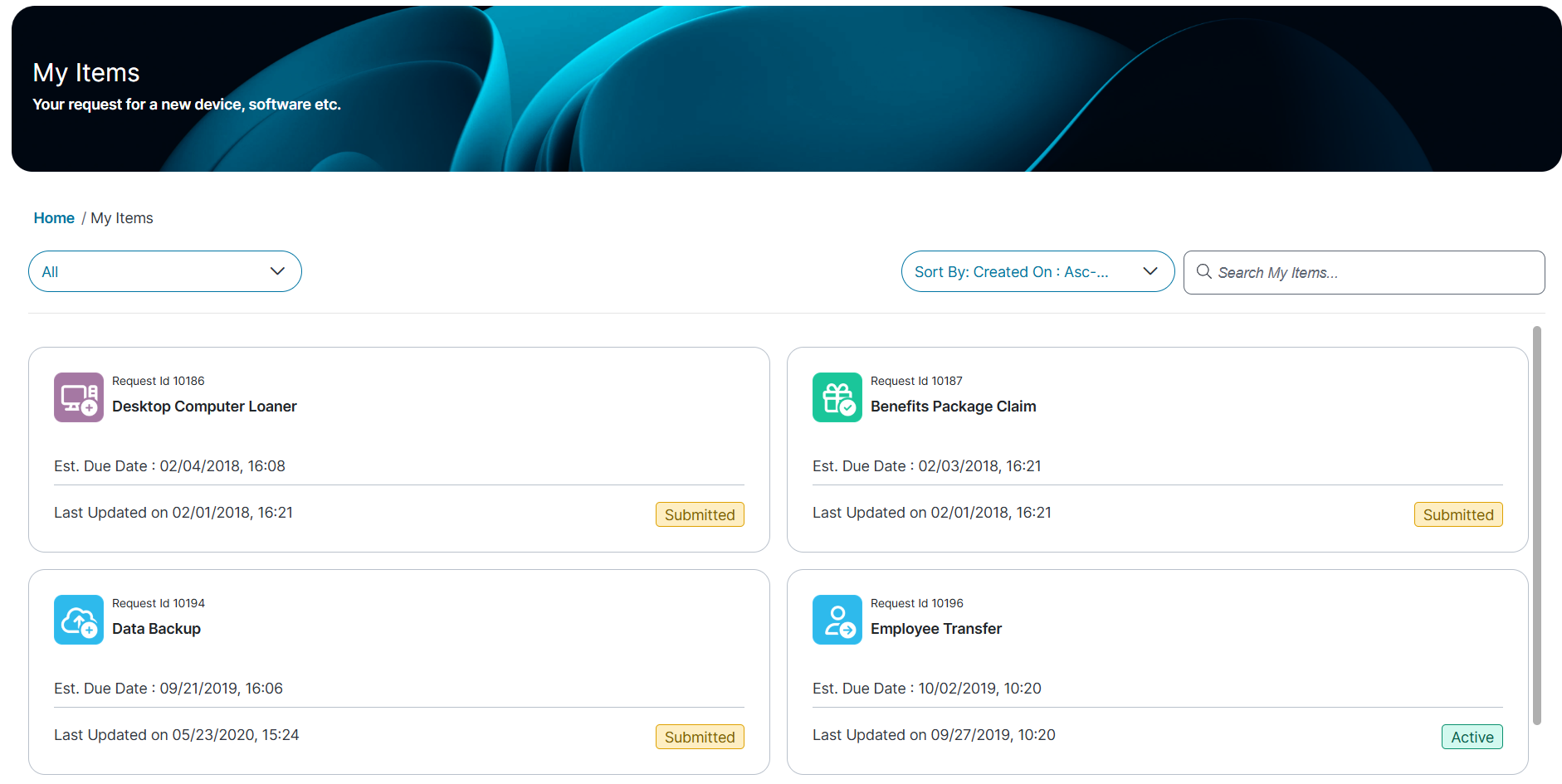
3.Click a record to open and view the details. The incident page appears and displays the following tabs:
•Status - Default tab
• Details
•Attachments
Filtering and Searching Items
You can filter and search your items based on your specific requirements.
To search for an Item
1.Log in to Neurons for ITSM.
2.From the left menu, click My Items.
The list of records appears.
3.Enter a keyword in the Search My Items field and click the search  icon.
icon.
To filter items by state
In the My Items workspace, click Filter and select one of the following option:
•All
•Approval
•Issue
•Request
The page displays filtered items based on your selection.
To sort items by specific criteria
Click Sort By and choose from the following options:
•Created On: Asc-Des - ascending or descending order
•Modified On: Asc-Asc - ascending or descending order
•ID -Item number
•Status - Based on the item status.
The page will update and display the items sorted according to your selected criteria.
Adding Notes and Attachments to My Items
To add a note to a service request or incident:
1.From the left menu, select My Items.
The list of records appears.
2.Click the record you want to update.
3.Click Status tab, under Notes , enter your comments, and then click Add Note.
•You can add notes to in-progress requests or incidents, but only before the incident reaches the Closed state, once added, notes cannot be deleted.
•Notes added by users with an Admin role are visible in the Notes section for tracking and collaboration.
To add an attachment
1.From the left menu, select My Items.
The list of records appears.
2.Click the record you want to update.
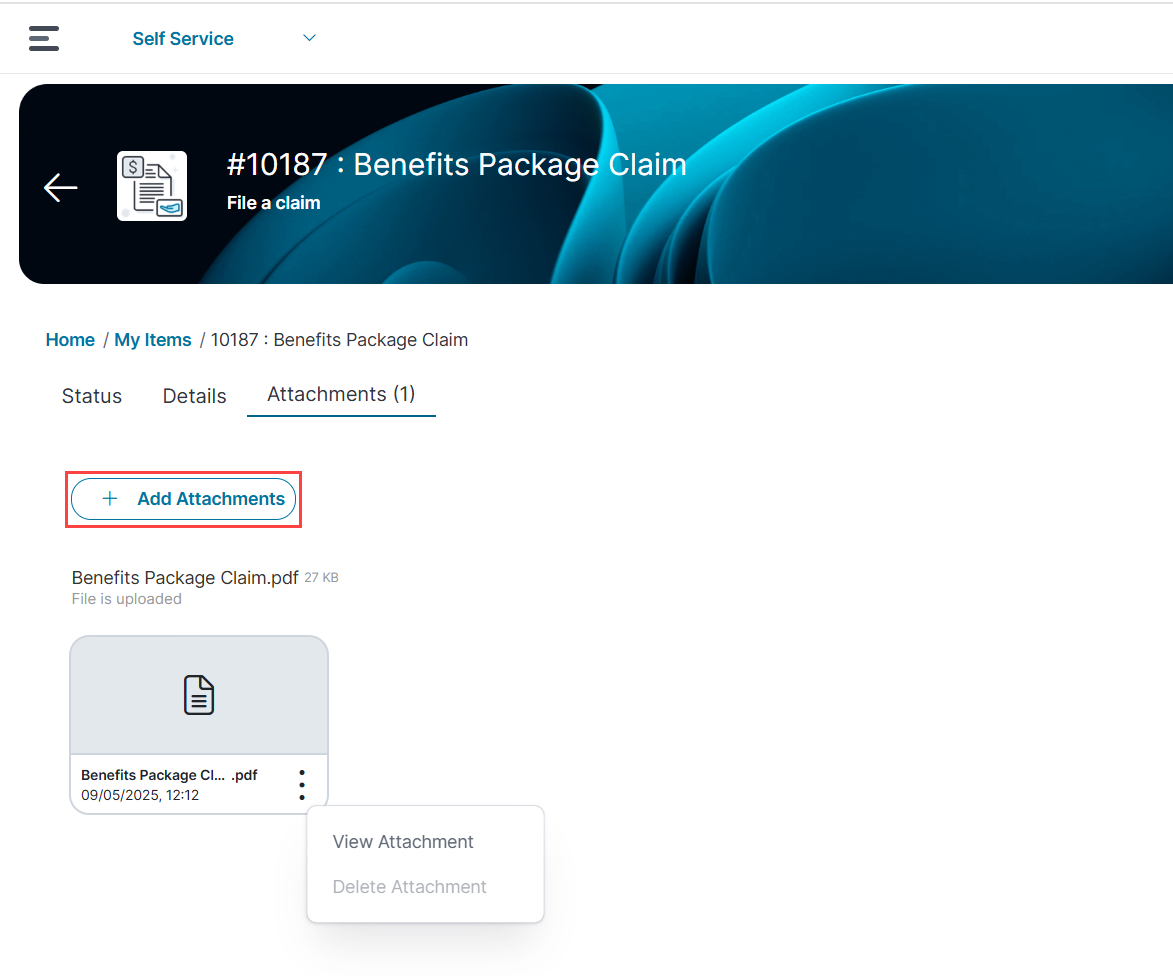
3.Click Attachment tab, and click Add Attachments.
•Select a file to attach, or drag and drop the file directly onto the page.
•You can add multiple attachments to in progress requests or incidents
4.To view the attachment, click ellipsis  icon, and click View Attachment.
The Attachment will download.
5.To delete an attachment, click ellipsis icon, click the Delete Attachment.
The confirmation dialog appears to prevent accidental deletions.
The delete option is available only if your role has the necessary permissions provided by an admin.
Updating In-Progress Service Requests and Logged Incidents
You can update a service request that is in progress by adding a note or an attachment. These additions become part of the record and cannot be removed.
1.From the left menu, select My Items.
2.Open the service request from the list view.
3.Click the Status tab, enter your note, and then click Add Note.
4.To add an attachment, under Attachment tab, click Add Attachments, and select a file.
The note and attachment appear with a time stamp when you reopen the request.
Updating a Logged Incident
1.From the left menu, select My Items.
2.Locate and open the incident from the list view.
3.In the Attachments section, click Browse and select a file to attach.
4.In the Status section, enter your note and click Add Note.
All updates become permanent parts of the incident record.